
IES FAQ Answers
Local Network Licenses
Network licenses allow many people to access one license. Each Seat allows for one unique user to access the license. If you have 3 network seats, then 3 different users may access the software at the same time. You purchase the number of seats you need now, and may add or upgrade later.
If you purchase a suite (multiple products under one license) each product is independent during usage. Running one product will not lock out a user from a different product, even though there is only one license file.
Network Licenses are activated on your local network and are accessible to engineers who need to use the IES products. You create a 'share folder' to host the license files. You may access this over a VPN connection. Each network subscription gets a single activation, regardless of the number of seats purchased. Once activated, any person on your network can run the licensed IES product and "connect" to the network license file. The system uses network semaphore file-locking to control the number of seats.
IES products require an Internet connection--at least periodically. Test that you can connect to 'secure.softwarekey.com' by entering that into the address bar of your web browser. It should display 'OK'.
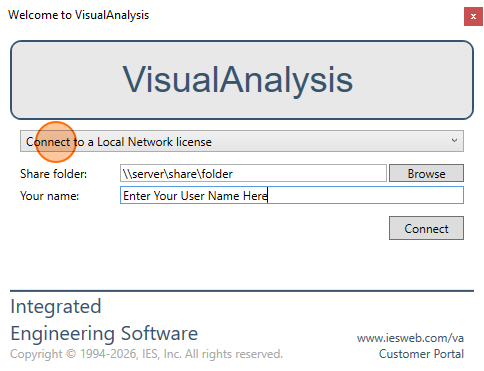
The access must be through a UNC path (e.g. \\Server\Share\Folder), which is not an alias. Note that in some circumstances it may be necessary to use the fully qualified domain name (FQDN) for the server machine when setting up the share folder path. The server should be a machine available at all times. This folder must have read-write-delete privileges for all users of the IES product. A single folder can (and should) hold all the activated license files. It will also contain a "LicenseUsageLog.txt" file, and license-locking files (intermittently).
The ManageIT utility can provide the text of this .reg file for you. This can simplify the connection on each engineer's machine.
You may back-up your share folder, in case it is accidentally deleted. If it gets lost, or license files are deleted, you will need to re-activate your licenses.
We offer a free utility tool, ManageIT, to help you manage all your IES network licenses from one location. This is the preferred way to Activate local network licenses.
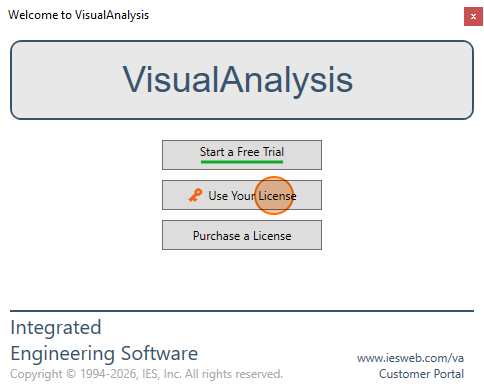
After the license has been activated, each user must install the IES product (on their own login account). Run the product to either activate a new license (once only) or connect it to the previously activated license.
Network subscriptions will “count down” with a message window if the connection to the server is lost. The count-down period is to allow you to save your work before the software boots you out. If you don’t save and the software exits, then any changes since the last save would get lost.
If you wish to move your license file to a different server, you must first deactivate the license, then reactivate it in the new location. If your server is down or already replaced, see Deactivating Licenses. You cannot simply rename the server or share folders and expect things to work.
Licenses are machine-locked, and network licenses are restricted to the share folder they were activated in.
If the hardware, or network settings or operating system changes, licenses can break. To prevent issues, deactivate licenses before making major changes on the machine that hosts the license share folder. If licenses are broken, you will need to delete them and then re-activate your licenses, which will probably require a phone call or email to IES sales.
You may purchase additional seats for your license by Contacting Sales. After making changes in the portal, you must refresh the license in ManageIT or through the program application, or in the product to get these changes into the product.
IES network licenses do not provide a way to check-out a seat to use offline, on a laptop or outside of the network. You must have a connection to your network to use a seat. If you need this ability, we offer Cloud based licenses with this feature.
See ManageIT for cached locations of share folders. See License Problems for general issues.