IES FAQ Answers
Connecting to a Cloud License
Follow the steps below to connect to a Cloud-based license.
Download and Install Before you connect to your Cloud license, download and install your software from our website at: iesweb.com.
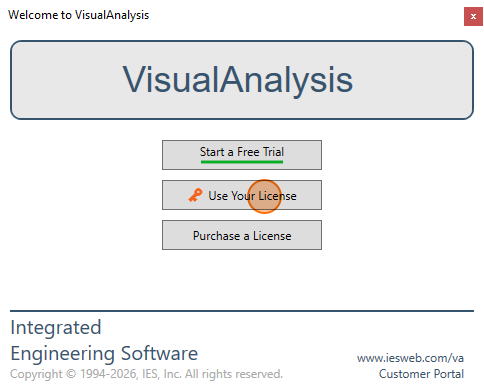
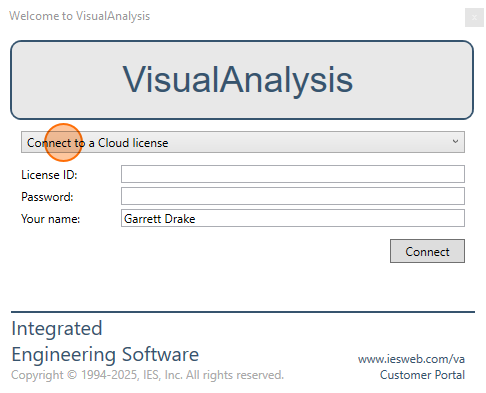
The first time you run the program, you will be shown the Welcome Dialog. From the dialog, enter your License ID and Activation Password. This information can be found on your Purchase Receipt or through your Customer License Portal (Also see Managing Cloud Licenses).
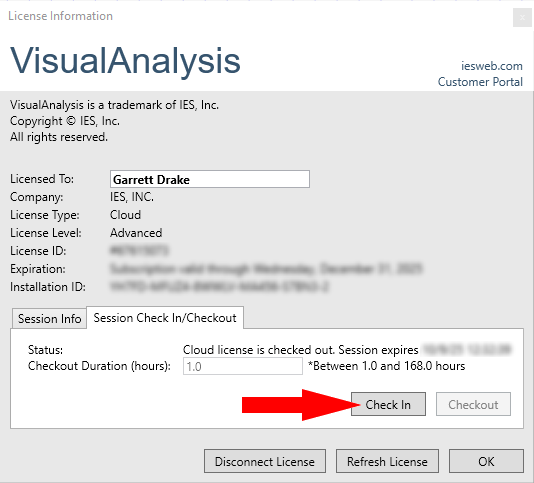
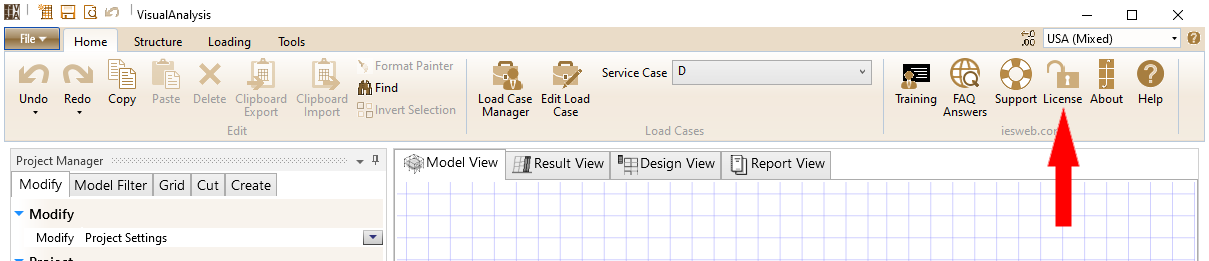
To view the current Session Information or to Checkout a session for offline use, use the License Information Dialog, as shown below.
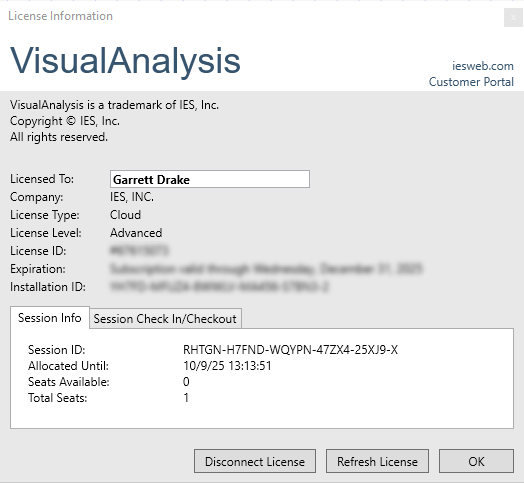
To Checkout a license for offline use, select the "Session Check In/Checkout" tab from the License Dialog and enter the length of time to checkout the session. Once a session is Checked Out, the license seat will be consumed until the session is Checked In or the checkout duration has expired.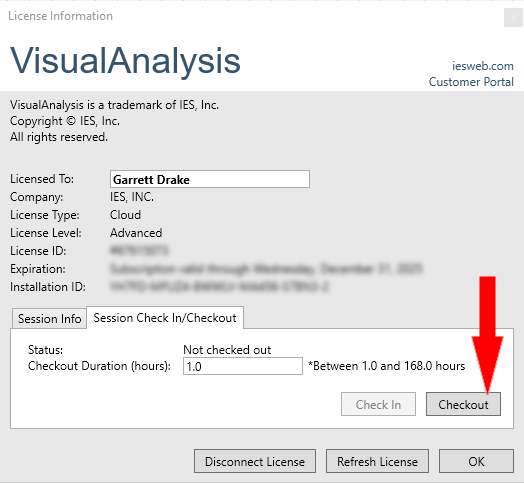
To return a Checked Out session back to the license pool, you must first Check In the session from the License Dialog. Upon closing the program, the consumed seat will be released back to the license.