IES FAQ Answers
Cloud License Management

To view license information and monitor usage for Cloud based licenses, follow the steps below.
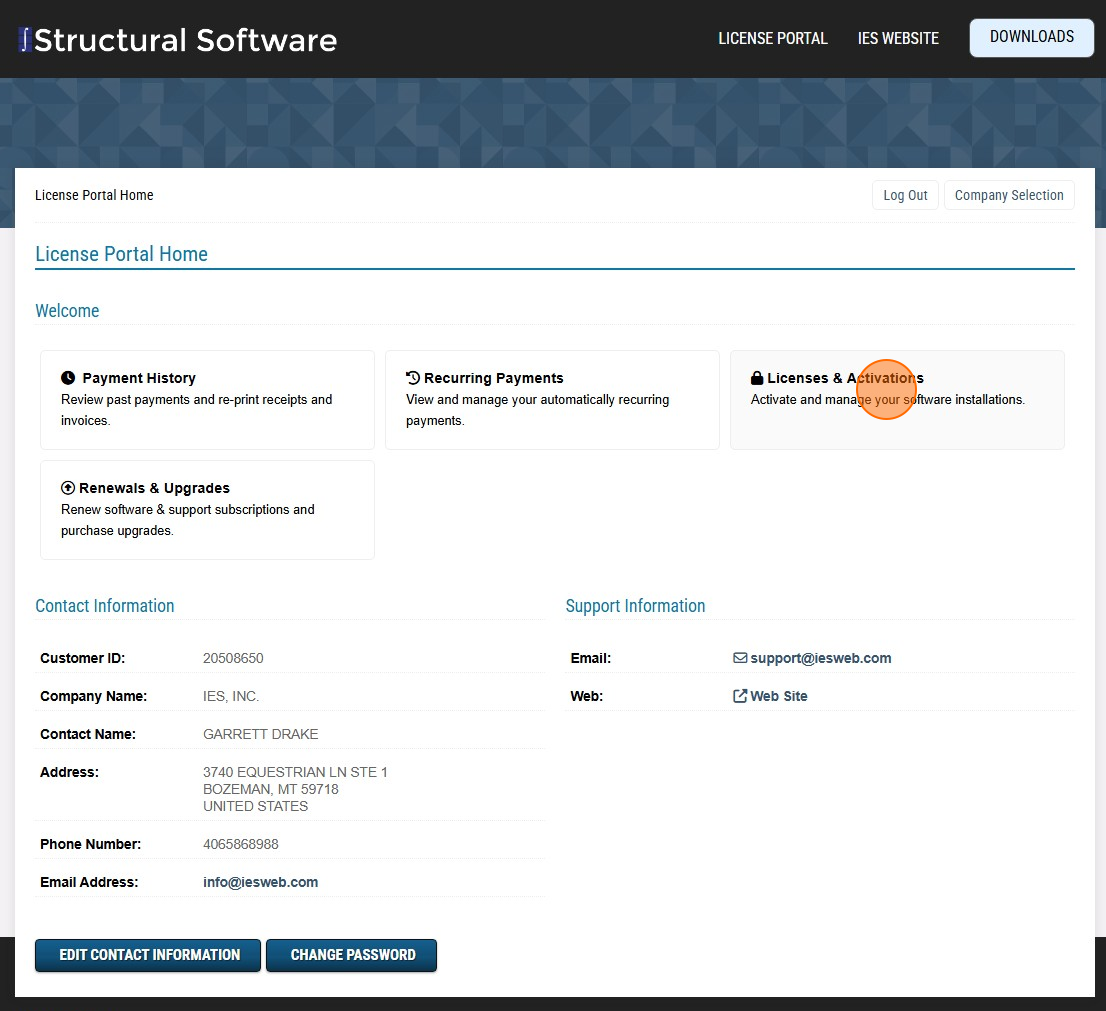
  1. Login to your Customer License Portal (Also see How to Log In)

  2. Click "Licenses & Activations" to view your licenses

    Licenses & Activations

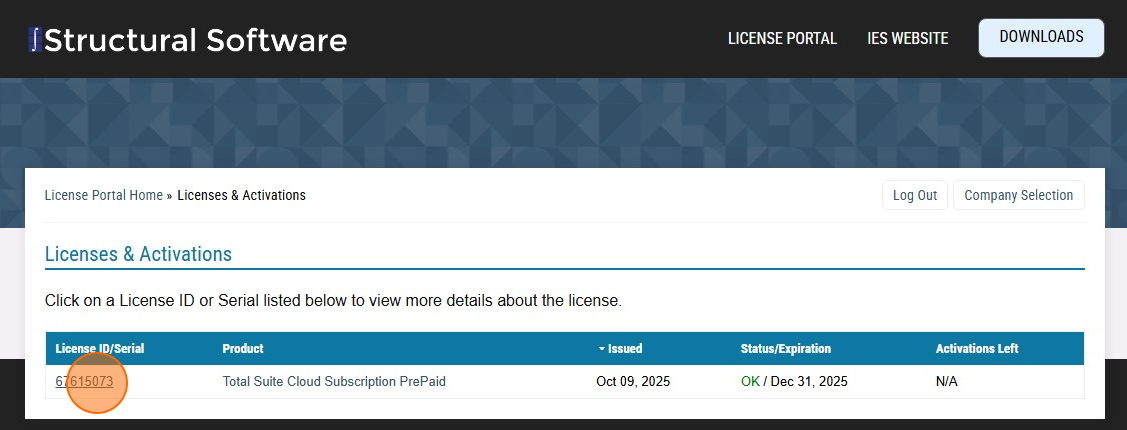
  3. Select the License ID to view license specific information

    Licenses & Activations

View Active Cloud Sessions

Any Active or Checked Out sessions can be viewed using the Network Sessions page, from the License Details page.
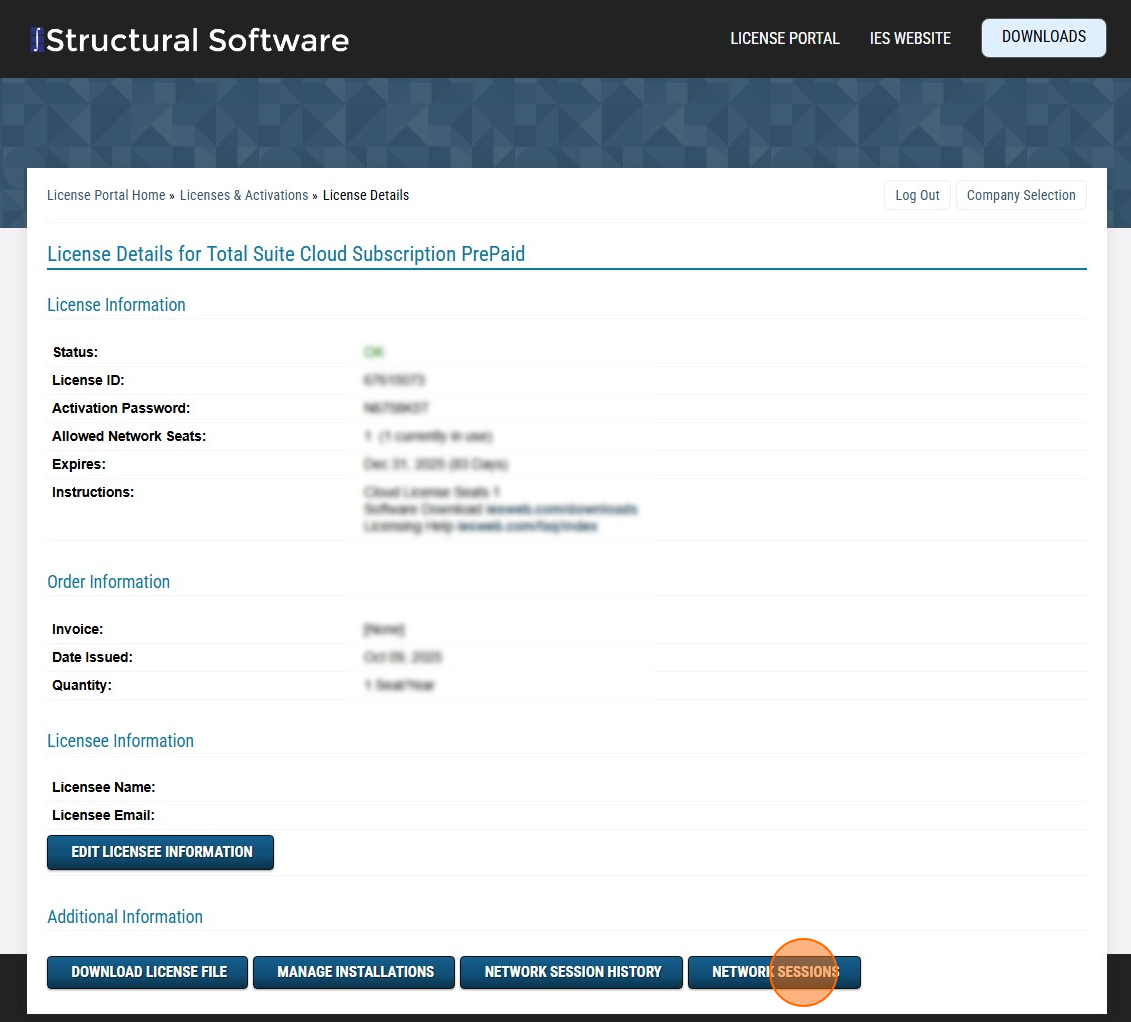
  1. Select "Network Sessions"

    Network Sessions

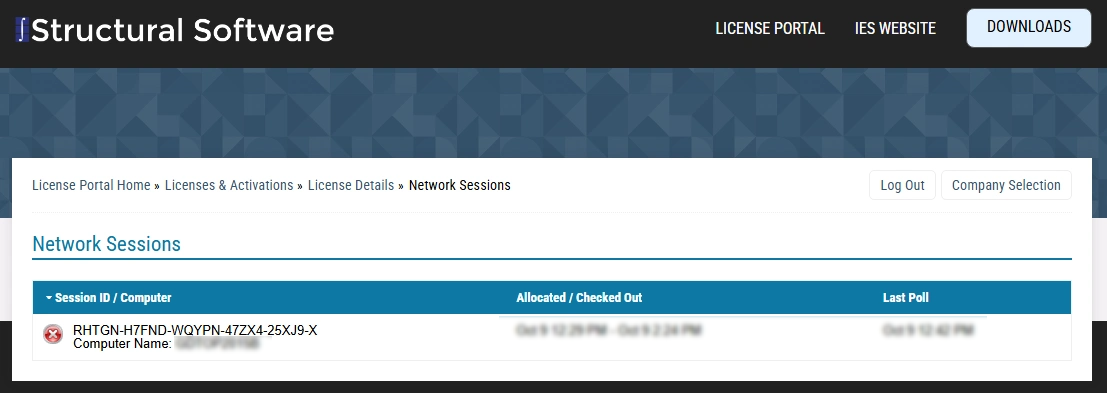
  2. Any active online Sessions will be listed in the Network Sessions list. If a Session is checked out, the "Red X" will not appear next to the Session ID.

    Network Sessions

    WARNING: If you manually cancel a Session by clicking the "Red X" next to the Session ID (see above), the user's program will close and they may lose unsaved work.

Cloud Session History

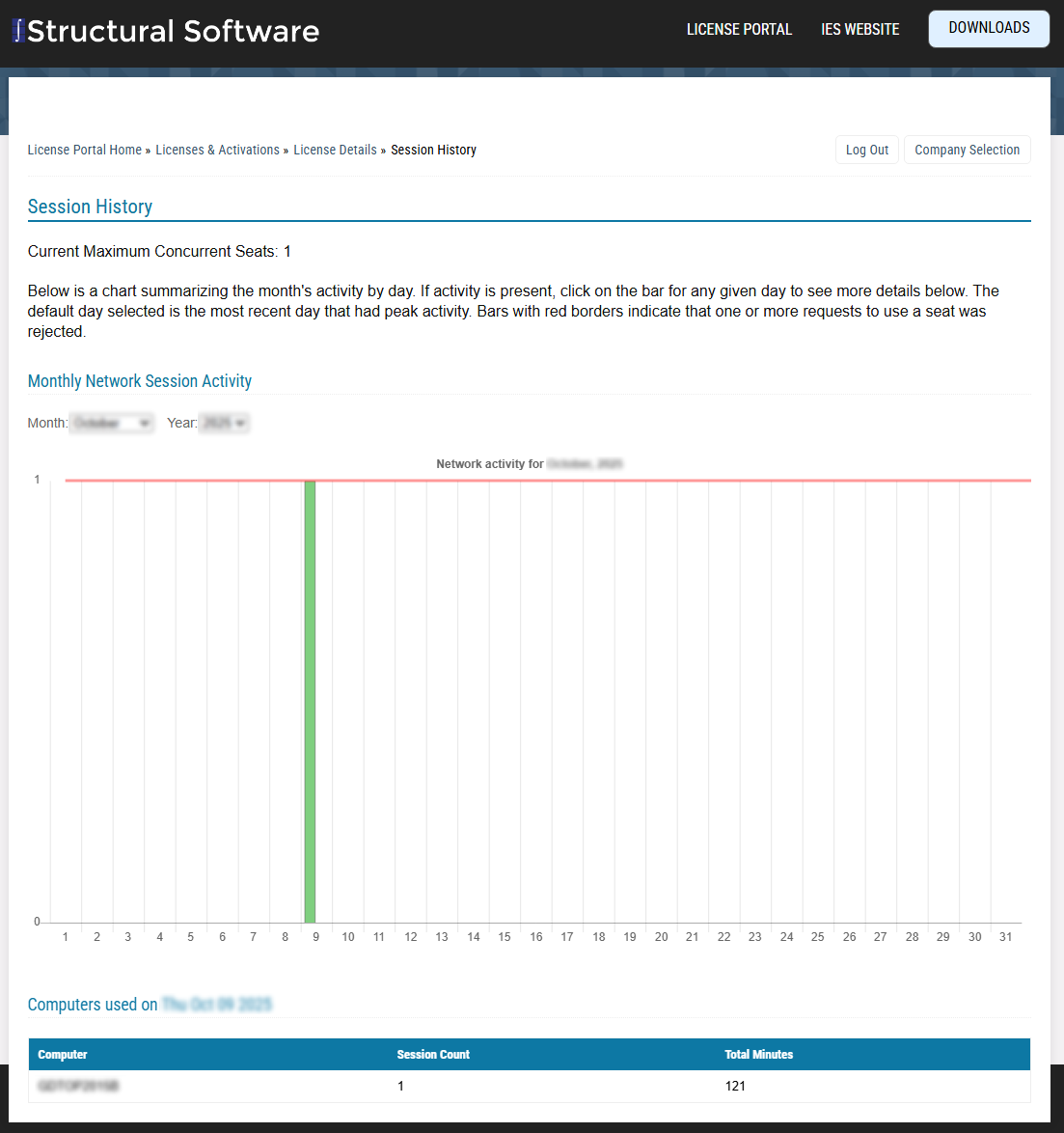
A history of the Cloud license usage can be viewed using the Network Session History page, from the License Details page.
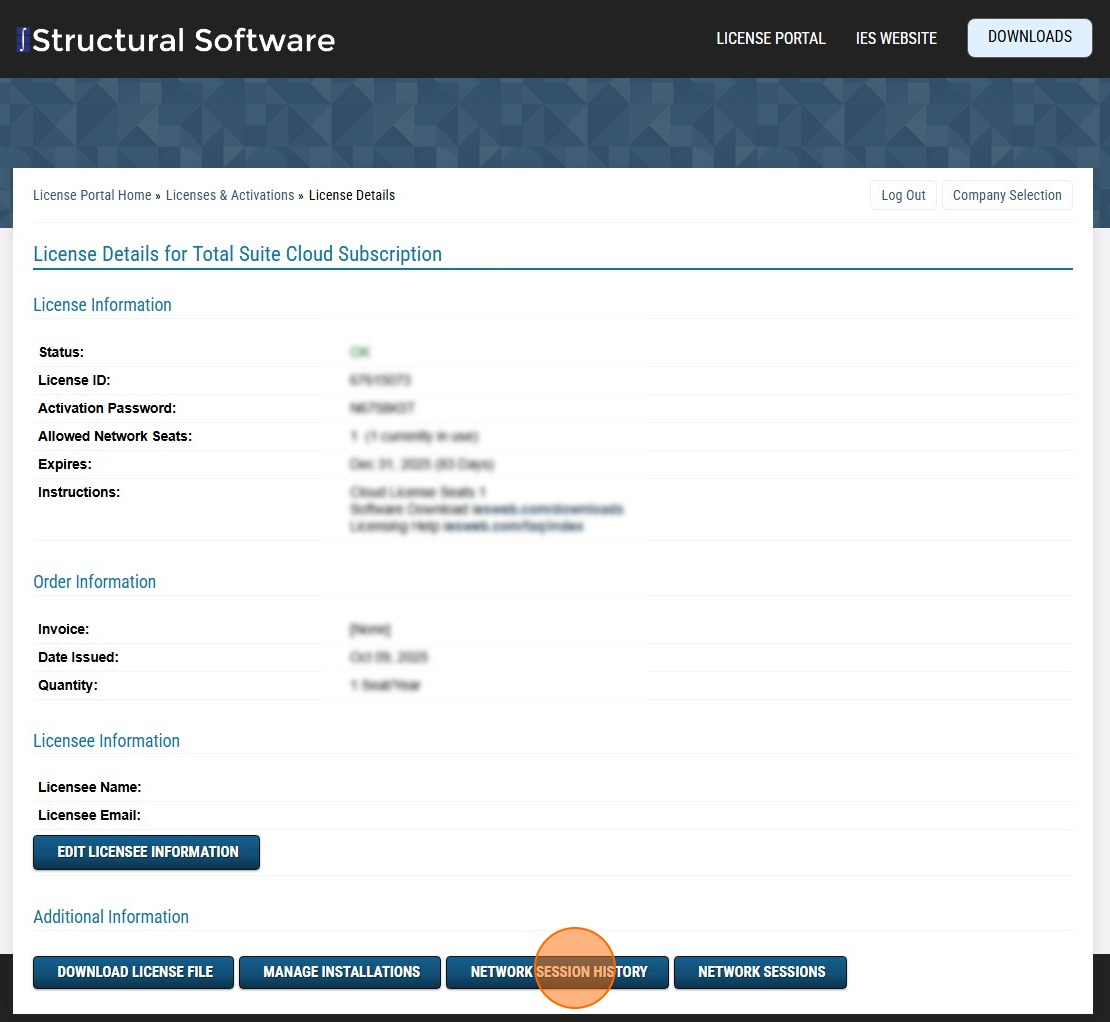
  1. Click "Network Session History"

    Network Session History

  2. Use the page controls to view license usage history. History is logged using the Computer Name of the user that was granted access to the license.

    Network Session History