Customer License Portal
Go to the Customer License Portal to view your licenses, manage activations, and update your account.
The Customer License Portal serves as your centralized hub to manage your software licensing and account with IES. The Customer License Portal can be used to:
- View and manage your active licenses.
- Find your License ID and Activate Password
- View Active installations
- View License information, such as expiration dates and available seats
- Deactivate old installations
- Update the licensee name, company details, and change of machine(s) or server if you move licenses.
- Handle billing and payment information, view invoices and payment history, and renew or upgrade your subscriptions or maintenance plans.
- Purchase new products or upgrade existing licenses.
Navigating the Customer License Portal
How to Log In
Log in to the Customer License Portal to view your customer account information and your product licenses.
You may also log in with the email address of the contact person. If you don't have any of this, please Contact Sales with your company details and we'll look you up and get you going.
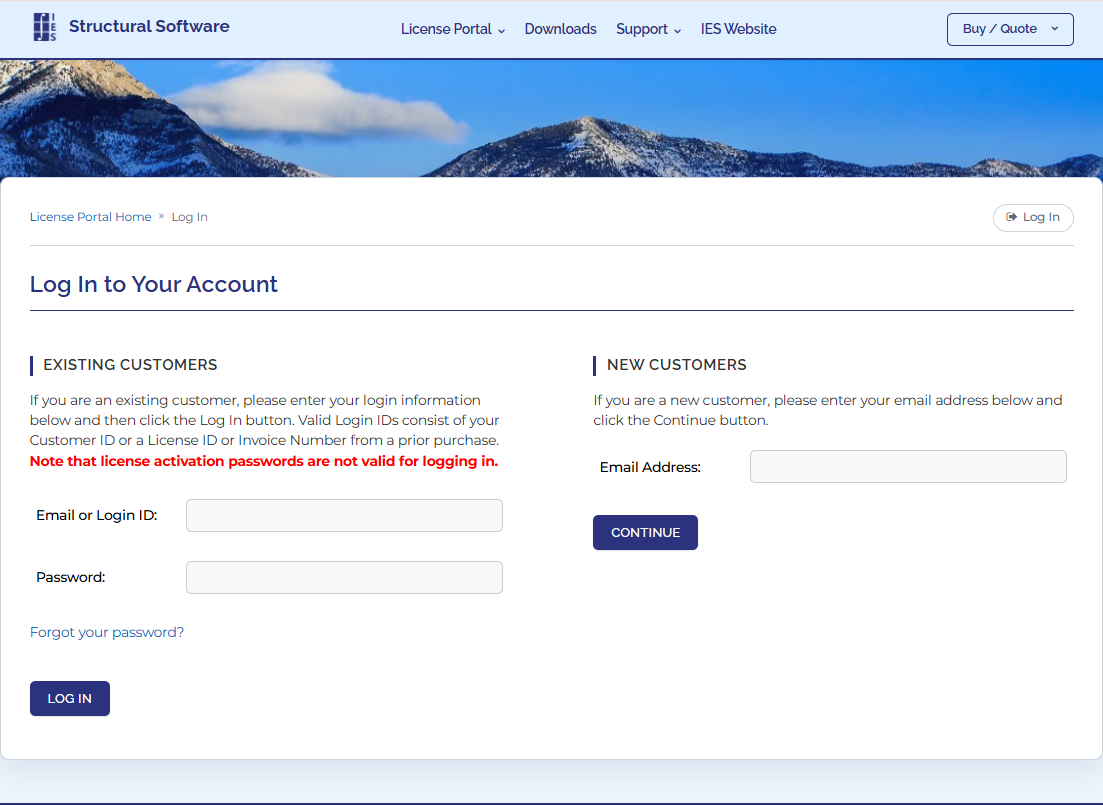
Your Login Password
You should keep your password secure. Each company has a single company-wide password that is used for login and may also activate any product. A manager may distribute separate activation passwords for each license.
Forgotten Password
If you have forgotten your login password, use the Forgot Password link at the Customer License Portal. The password or a reset link will be emailed to the contact email address.
View Products
The Customer License Portal shows you a list of all your products, under Licenses & Activations, along with their license ID, expiration date and installation and activation history. Click on a specific license to view or manage it.
Activation Passwords
If you don't want to share the company-wide password with all employees, you may distribute product-specific activation passwords instead. These are shown under the Licenses & Activations, for each license separately. Click on the License ID number to find it.
View Activations
To see where a license has been activated, click the Manage Installations button on the License Details page. Licenses are identified by an Installation ID, or the machine name.
Manually Deactivate a License
Typically, you will deactivate a license on the machine where it is activated from within the IES Product. If you had a license installed on a machine that is dead, lost or stolen, etc., you may manually deactivate that installation in the Customer License Portal. Find the license under Licenses & Activations, and click to see the details and use the Manage Installations button.
View Past Invoices
Look under Payment History to find sales receipts for past charges or purchases. To see when your next automatic charges are coming look under Recurring Payments.
This applies only to purchases made through the Customer License Portal. If you purchase offline or directly through the Sales department, your invoices or receipt will be emailed separately.