
IES FAQ Answers
ManageIT Utility
This free utility program allows anybody to activate, deactivate and otherwise manage Local Network Licenses for any or all IES products activated in a single location. You can run this utility on any machine, which does not need to have the IES products installed. You may download this utility.
Download and install ManageIT from our website at: https://www.iesweb.com/downloads
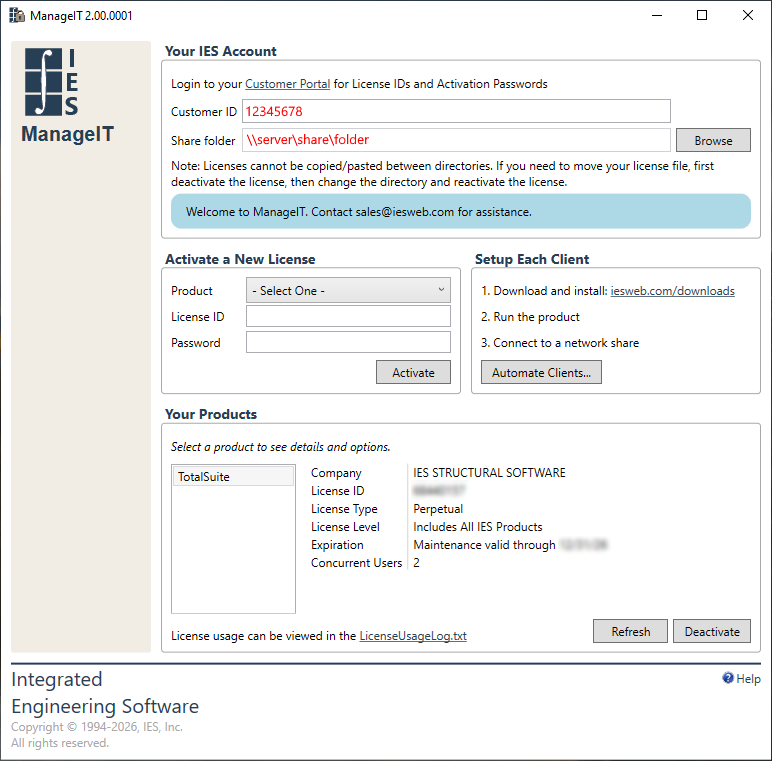
To activate your IES licenses, you will need a License ID and either the account password, or the activation password for that license. These are found in the Customer License Portal. Each product is activated exactly ONCE. After that, clients may connect to the license to use it. If you run out of activations it typically means you did not deactivate a previous installation.
To move licenses to a different server or share folder, you must first select the product, then deactivate the license. To change the share folder, first deactivate all licenses for all products.
You may purchase additional seats for your license by Contacting Sales. After licenses are updated by IES, you can refresh the licenses in ManageIT, or in the product through any client to get these changes migrated into the license files.
IES network licenses do not provide a way to check-out a seat to use offline, on a laptop or outside of the network. You must have a connection to your network to use a seat. If you need this ability, your company could purchase a single-user license for this purpose.
This button will generate a Registry script file (.reg) that contains connection information for your license.
If you are changing servers or share folders, you will need to manually edit this file to add entries for specific products. Otherwise the client machine will continue to "point" to the old license location.
You can then 'merge' this information onto any client machine to assist clients or automate the connection.
Running the software on a client machine allows you to manually 'connect' to an already activated license in the share folder by typing in the path. Once you enter a path it is stored in the system registry for convenience. If the share folder changes or you wish to automate how clients connect you can create or change these system registry entries using your magic IT tools.
These entries contain the location of the Share Folder (a UNC or FQDN path) and the name of the engineer using the software, this name will appear in software reports.
On startup, IES software will locate these entries and attempt to use a network license from that location.
When network licenses are used and released, entries are made into a text file log. This file resides in your share folder and you may view it at any time to see how and when licenses are used. This information can help you decide if you need more or fewer seats of a license. You may delete this file and it will get recreated as needed.