
IES VisualFoundation User's Guide
Foundations
Concrete foundations (also called boundaries, slabs, footings, or mats) are the primary elements modeled and checked by VisualFoundation. A wide variety of shapes can be modeled in VisualFoundation. Foundation size is defined by vertices at boundary points. A single concrete material is used for all foundation boundaries in your project. You may use Piles, Grade Beams and Walls to add stiffness to foundations.
You may sketch arbitrary polygon foundation in the Model and Load view or create rectangular, polygonal, or circular boundaries. You typically define a drawing grid before sketching, but you can also draw to existing vertex points. There is a drawing mode on the Ribbon to control what happens when you drag or click your mouse. Slabs have "snap" points, specified in the tab. These snap points can be used as drawing "connections" when you are drawing a slab with the mouse. Any arbitrary geometry can be constructed by drawing multiple slabs connected to or overlapping one another (disconnected slabs are not allowed). Each individual slab boundary can have a different thickness. Adjoining slabs are modeled as continuous, with common displacements and flexural rotations at boundaries. At locations of overlapping slabs, the thickness is determined from the Overlap Handling setting ( tab) and can be set to Add Thicknesses, Smallest Thickness, or Largest Thickness.
There are no features in VisualFoundation for modeling expansion-joints or other discontinuities in the slab.
Each foundation boundary may also be supported by different soils, each specified by a Soil Subgrade Modulus (Kv). The way the subgrade modulus for overlapping areas with different soil modulii is handled is specified in the Analysis section of the Project Settings.
Any boundary can be turned into a hole by setting its "Hole?" property to true in the tab. Loads falling within holes are not included in analysis. If portions of Area Loads lie partially over holes, only the loading lying over slabs are considered (i.e. the loading that occurs over holes is not distributed to adjacent plate elements).
Foundations may be loaded with Full Area, Circular, Rectangular, and Ring area loads. They may also have loads transferred through Piers, Walls and Grade Beams.
Slabs in VisualFoundation are meshed into triangular FEA plate elements with displacement springs used to model the slab-soil interaction. See the Analysis page for more information on the FEA mesh density, including available settings and options. For a more low-level view and understanding of the model that is built, you can save your project to VisualAnalysis and examine the FEA model in more detail. More information on integration between VisualFoundation and other IES tools can be found on the Integration page.
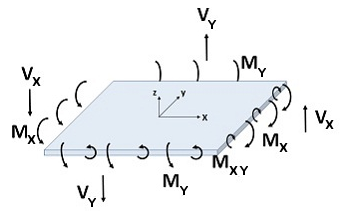
The results from the finite element analysis can be displayed graphically from the Analysis Results view. The tab displays the numerical results that correspond to the colored graphics. With nothing selected, the results displayed in the Project Manager are a summary for the selected result case, whereas if one or more individual plates are selected, the Project Manager shows the result range for the selected plates. The various Result Cases that were included in the finite element analysis can be selected using the Result Case drop down from the tab.
VisualFoundation checks and designs concrete slabs and walls according to specifications listed below.
The Wood-Armer1, 2 method is used to calculate the design moment, Mu, from the FEA results. VisualFoundation takes the critical flexure section as the face of beams, piles, piers, and walls. Plate nodes that fall within these objects are not checked for flexure.
The bending moment capacity of the slab is a function of the compressive strength (f'c), thickness, and the area of steel reinforcement provided. Reinforcing is placed in both plan directions (X & Y) and in either one or two layers. This results in up to four reinforcing quantities at every point in the slab (X, Y, Top, Bottom). VisualFoundation performs moment and steel demand calculations at the finite element model node points. The reinforcement required to meet factored demand is selected by the program based on the list of available rebar patterns defined from the Foundation Design view under Rebar Patterns from the tab. The rebar pattern with the smallest area (As) is selected from this list that meets the required flexural and minimum steel demands.
The critical section for one-way shear (i.e. beam shear) is taken at the face of: piles, piers, walls, and grade beams. However, if a pile or pier introduces compression in the slab, the critical section is taken at "d" from the face of the object.
Plate shear checks are reported graphically from the Foundation Design view by selecting Shear Unity from the under the Slab Details category (red plate colors indicate a failing unity). Shear checks can also be reported as numerical results using the programs's Test Reports.
Two-way, or Punching Shear, checks are made at locations where a concentrated load is introduced into the slab, such as at piles, piers, and walls. The design check for punching shear involves calculating the punching perimeter around the object, generally located a distance d/2 from the face of the object; however, the punching perimeter can be overridden if so desired. Punching perimeters may also be truncated by the slab boundary. The concrete strength of this perimeter must exceed the net load acting inside the perimeter.
When piles or piers contact other surrounding punching perimeters, these are combined into a larger punching area. The same capacity checks are made on these larger combined perimeters. These combined areas are shown graphically in the Model and Load view, but you may not directly manipulate them. If a grade beam crosses an object's punching perimeter, punching shear checks are not performed ("-N.A.-" will appear in the punching shear report). In this situation, it is assumed that the grade beam will be designed to carry the required shear demands. Punching shear checks are not performed for rectangular/circular loads, or beams.
You can have the software detail bar patterns by plate element, by column lines or by slab boundary. Use the tab from the Design Results view to display the different results.
Design results can also be viewed in text form using the Text Reports tab. Once on the Text Report tab, a list of available deign tables is shown on the tab and can be added to the text report by double-clicking an individual table or dragging and dropping a table into the report. Design plates can also be reported on an individual basis by selecting one or more plates from the Design Results view, and using the right-click context menu to Report Selected. Note that the reinforcement settings are included in the Slabs table located under the Structure Tables category.