IES FAQ Answers
Moving Licenses
It is easy to migrate your license from one machine to another.
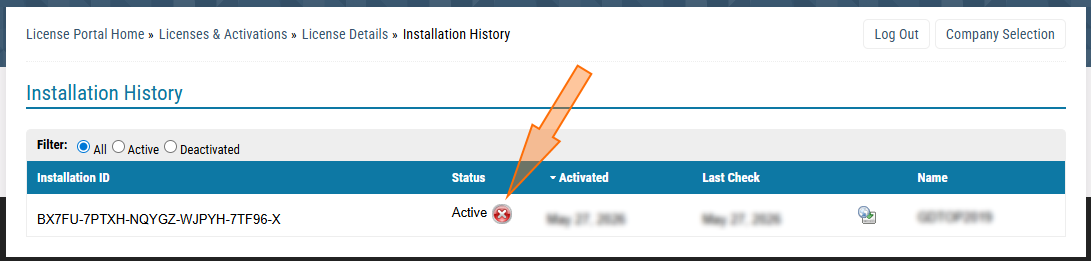
For single-user licenses simply deactivate the license on your current machine. Then, download, install, and activate on your new machine.
Clients on a network license may simply install the software and then "connect" to the existing license on the network. Please see Local Network Licenses for information about renaming or changing server machines or network paths.
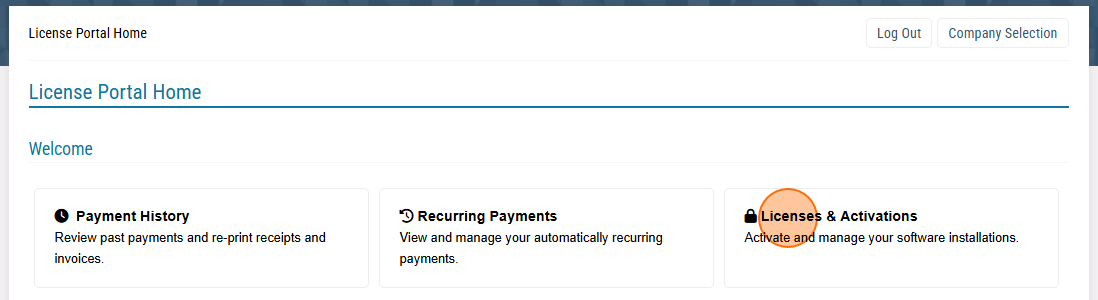
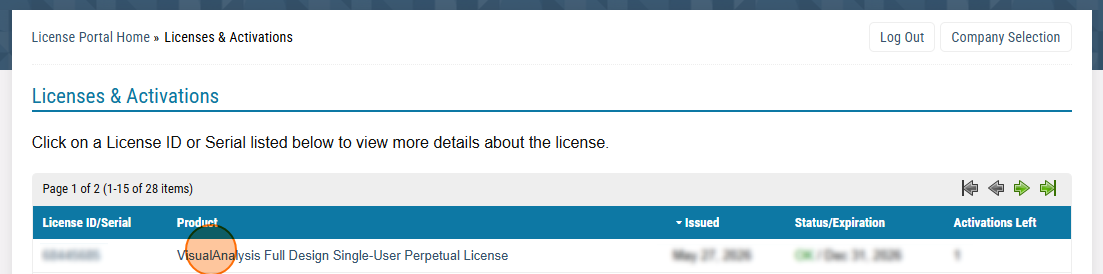
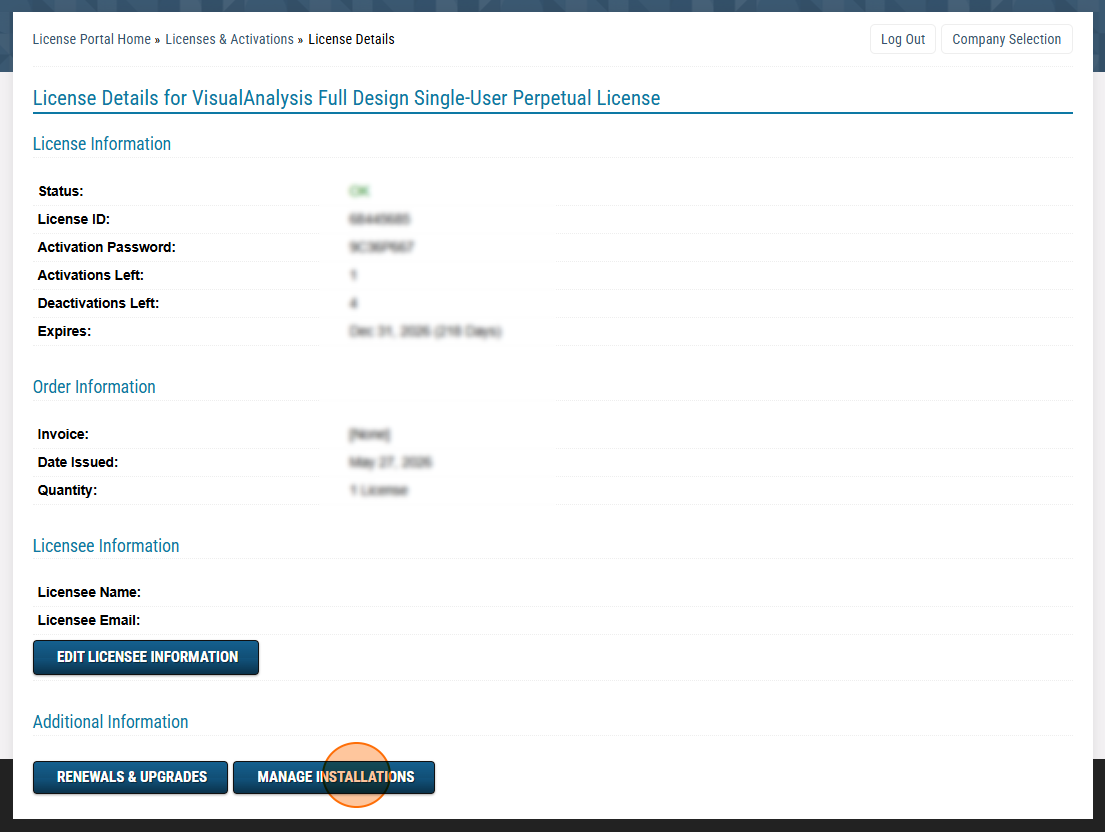
Navigate through your Customer License Portal to view installation history and deactivate licenses.
Follow the steps outlined below to deactivate a license through the Customer License Portal. This can be useful if you no longer have access to the computer you are needing to remove the program from.